We’ve heard it before – Always send a customized invite when asking someone on LinkedIn to network with us. All social media experts tell us to never use the default generic LinkedIn invite, which reads “I’d like to add you to my LinkedIn network.” It annoys most users and many will dismiss it – and dismiss you – immediately.
A baked potato has more personality than LinkedIn’s default message, so whenever it’s shown to you as an option, get rid of it. Type over it with your own message. A user you already know will probably forgive you for a generic invite, but it’s the new people you’re trying to reach who you need to worry about. This is where I need to warn you.
Beware LinkedIn’s Generic Buttons!
First, a few facts:
- Main fact #1: Unfortunately, the way invite buttons look and behave (and where they live) on LinkedIn isn’t uniform.
- Main fact #2: Some of those buttons are “dangerous buttons” because they’ll send a user the dreaded generic LinkedIn invite as soon as you touch them, even if you touch the button by accident on mobile.
- Side note: LinkedIn’s official Android app interface is notorious for showing these dangerous buttons in different places, willy nilly with no rhyme or reason.

Look at this screenshot. Make a mental note of what you see, where things are positioned, etc. The button circled in red will not allow you to create a custom invite. Hit it and you’ll be sorry – It will say “Invitation sent”. Oh boy. It’s a done deal.
You’re not able to “unsend” it. Now you look like someone who doesn’t use social media best practices, or worse, a lazy spammer.
Supposedly the x button will “hide” the suggested person from your view, but notice that it’s so close to the generic invite button, it’s a real risk to press it, especially if your mobile device has a small screen.
(Side note: Where users have reached out to invite you to their network, you’ll typically see their info in a separate section where you can hit accept (the checkmark icon) or dismiss (the x icon).)
How to avoid LinkedIn’s “digital poison ivy”
So far, this is what I’ve noticed – There are even more screens and zones where dangerous buttons exist, especially on the Android version of LinkedIn. The screenshot here doesn’t tell you what they all look like nor where they all are, and this is a big problem for LinkedIn users who assume those quicky buttons are a good idea. They’re not.
Fortunately, the solution is simple. The best way to get to the customizable invitation compose box is to go to someone’s profile using desktop LinkedIn, then find the option to invite them. Any other section with supposedly “convenient” invite buttons are best avoided completely.
If LinkedIn is suggesting someone interesting for you to follow, go to that person’s profile, then find the option to send them an invite, and I strongly suggest you do this all on the desktop version of LinkedIn, never on mobile. You should be able to create a customized message from there. Yes, it’s a few more steps, but anything else is always a risk, especially on Android LinkedIn, as you can see in the 3rd screenshot below.
Please bookmark this article because we’ll continually update it as we find screenshots to warn you. If you know of others, let us know and we’ll add them and credit it to you.


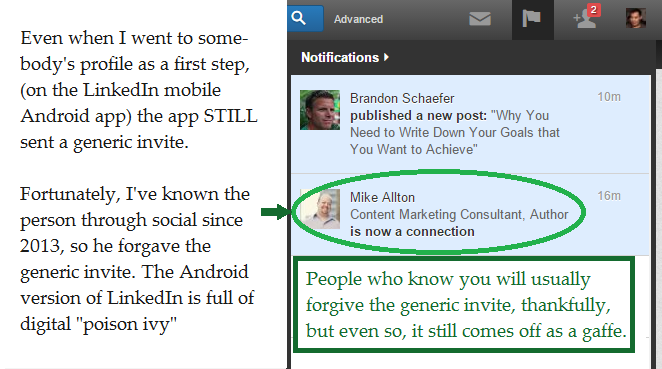
Image credits: Alex Yong
Comments are closed.